Best Free Image Editing Tools for YouTube Creators in 2026 (No Signup)
By Reese Calder · Published September 11, 2026
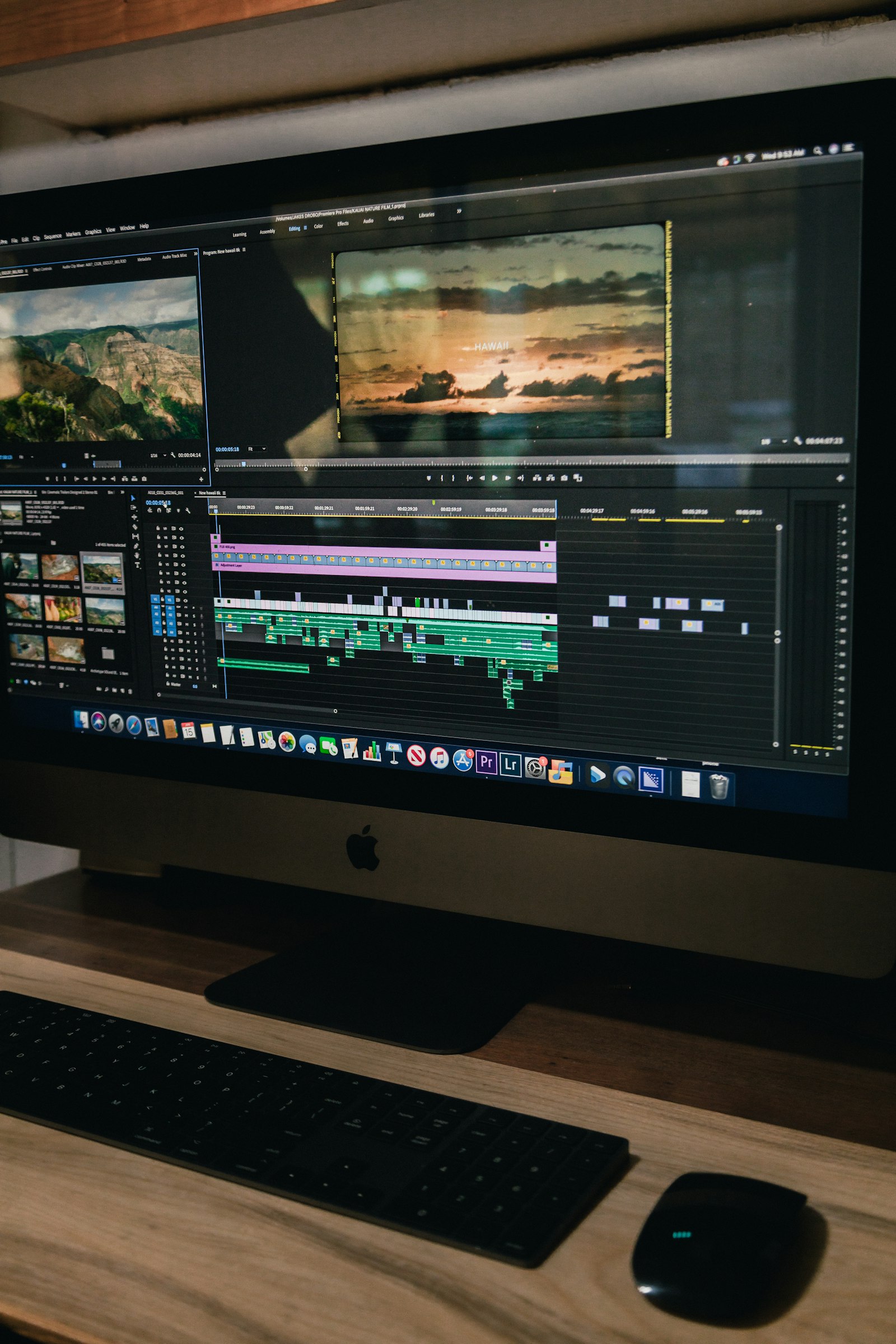
Photo: Peter Stumpf, Unsplash License.
Not every image job needs Photoshop. Most of what a creator actually does day-to-day — resizing a thumbnail to spec, rotating a sideways photo, cropping a screenshot, stamping a small watermark on exported clips — is quick, repetitive work that a full desktop editor is overkill for. Here’s what’s actually worth using for each job, starting with what runs free and signup-free right in your browser.
The short answer
- For resizing, rotating, flipping, watermarking, and format conversion: use our own free Image Editor — it runs entirely in your browser, nothing you upload ever leaves your device, and there’s no signup or watermark added to your export.
- For shrinking an already-final image’s file size: use our Image Compressor instead — a quality slider dedicated to squeezing down JPEG/PNG/WebP file size.
- For layered, multi-element thumbnail design (text, graphics, multiple photos composited together): you need a proper design tool — Canva’s free tier or Photopea, covered below.
Resize, rotate, flip, and watermark without uploading anything
If the job is a single transform or two — fix the orientation, resize to a platform’s dimensions, add a small text watermark before you export a clip — you don’t need a design tool at all. Our free Image Editor handles this directly in the browser:
- Resize to exact dimensions, with an option to lock the aspect ratio so you don’t accidentally stretch a photo.
- Rotate in 90° steps and flip horizontally or vertically — the fix for a phone photo that came in sideways or a screen recording that’s mirrored.
- Add a text watermark with control over position, size, color, and opacity — useful for stamping a channel handle on frame grabs before sharing them.
- Export as JPEG, PNG, or WebP, with a quality slider for the lossy formats.
Because it’s plain client-side JavaScript (Canvas API), the image is processed on your own device and never sent anywhere — worth knowing if you’re editing anything you’d rather not route through a stranger’s server, like an unreleased thumbnail or a client’s product photo.
When you need a real design tool
Transform tools don’t compose layouts. If the job is building an actual thumbnail — a background photo, a cutout of your face, bold text, maybe a subscriber-count badge, all arranged together — you need something built for layered composition:
- Canva (free tier): the most common choice for creators specifically because of its thumbnail-sized templates and drag-and-drop layering. The free tier covers the vast majority of thumbnail work; paid unlocks more stock assets and brand kit features.
- Photopea: a free, browser-based Photoshop clone that opens and saves
real
.psdfiles. The closest free option to actual Photoshop layers, masks, and blend modes if you’ve outgrown Canva’s template-driven approach but don’t want a subscription. - GIMP: a free, open-source desktop editor with the deepest feature set of the three, at the cost of a steeper learning curve and an interface that doesn’t follow Adobe’s conventions.
A quick note on watermarking your own exports
If you’re distributing frame grabs, preview clips, or screenshots publicly (on Discord, in a Patreon post, cross-posted to another platform) and want your channel name visibly on them, do it as the very last step after every other edit — resizing or converting a file after a watermark’s been added can shift its position or shrink it into illegibility.
FAQ
Does the free Image Editor have a file-size or dimension limit? No hard limit is enforced. Very large images are only limited by your device’s available memory, since the whole image is processed in your browser tab rather than on a server.
Will my exported image have a watermark added by the tool itself? No — the tool never adds its own branding. The watermark feature is only for adding your own text if you choose to.
Can I batch-process multiple images at once? The Image Editor is built around one image at a time so you can see the crop/resize/watermark result live before exporting. For bulk format conversion or compression across many files at once, use the Image Compressor instead, which supports adding several images together.
Related reading
CapCut vs DaVinci Resolve for Creators: Which Editor Do You Actually Need?
CapCut and DaVinci Resolve solve different editing problems — fast, mobile-first Shorts edits versus a full desktop NLE with professional color grading. Here's how to pick without over-buying.
ComparisonsDaVinci Resolve Free vs Studio: When Does a Creator Need the Upgrade?
Decide whether DaVinci Resolve Free is enough for your videos and identify the specific editing needs that could justify Studio.
ComparisonsGemini TTS vs ElevenLabs: How to Choose a Voice for Your YouTube Channel
Compare Gemini TTS and ElevenLabs by workflow, voice control, commercial rights, and revision costs before choosing a YouTube narration tool.