Edit Video by Editing Text: A Faster Workflow for Talking-Head and Podcast Creators
By Reese Calder · Published September 26, 2026
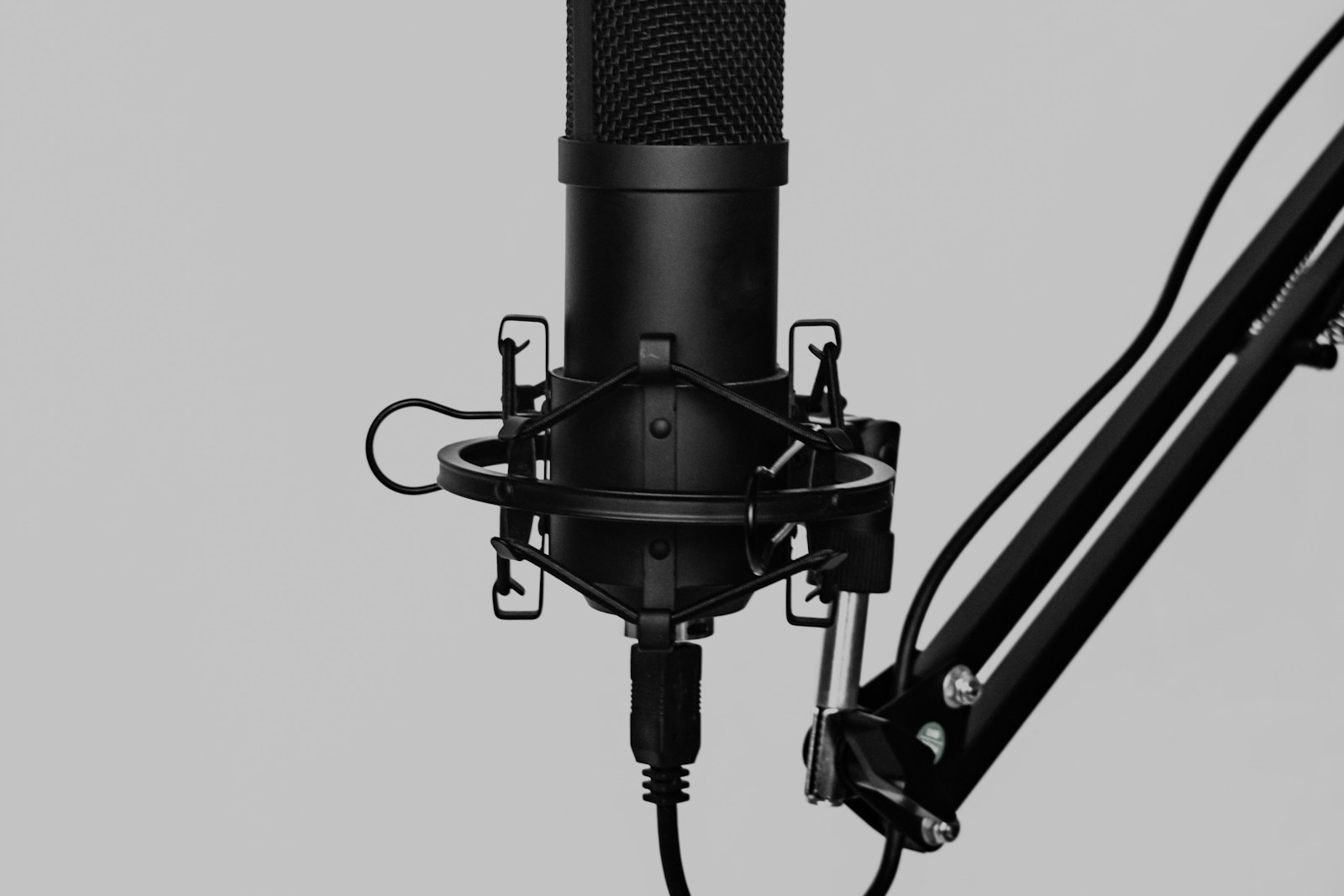
Photo: Klim Musalimov, Unsplash License.
For most talking-head videos, the slowest part of editing is the rough cut. That means scrubbing through an hour of footage to find the takes you want and cutting out the stumbles. Text-based editing turns that job into something closer to editing a document, because you cut the video by deleting words from its transcript.
This guide uses Descript, the best-known tool built around this approach, but the workflow applies to any editor with transcript-based cutting.
How text-based editing works
The editor transcribes your recording with word-level timestamps, so every word in the transcript is tied to an exact point in the audio and video. When you delete a sentence, the matching media is cut. When you move a paragraph, the clip moves with it. The timeline is still there underneath, but for a first pass you rarely need it.
The rough-cut workflow, step by step
1. Record with editing in mind. When you fluff a line, pause, then say the whole sentence again from the start. Clean restarts are easy to spot in a transcript and easy to delete. Restarting mid-sentence leaves you with a cut you’ll have to fix by hand.
2. Import and let it transcribe. Check the transcript for names and jargon it misheard. Fixing these now makes searching reliable later, and the same transcript becomes your captions.
3. Read it like a script, and cut. This is where the time savings are. Read top to bottom and delete false starts, repeated takes (keep the last clean one), tangents, and anything that doesn’t serve the video. On a typical recording this pass takes a fraction of the time a timeline pass does, because you read faster than you can listen.
4. Remove filler words in bulk. Use the filler-word tool to find every “um,” “uh,” and “you know,” then review before deleting. Removing all of them can make someone sound unnaturally clipped. Leave a few in natural spots.
5. Check the pacing by listening. Text doesn’t show rhythm. Play back the whole cut and listen for jump cuts that land mid-breath, or pauses that have become too tight. Tighten or loosen those spots on the timeline.
6. Clean the audio. Descript’s Studio Sound reduces room echo and background noise. Apply it and check the result on headphones, because heavy processing on a poor recording can make a voice sound thin or metallic.
7. Fix small mistakes with your own voice, carefully. Descript can clone your voice to patch a misspoken word. It’s useful for a single word, but a whole sentence of cloned audio is easy to hear. For anything longer, re-record.
8. Finish or hand off. For a podcast or simple talking-head video, you can export from here. If the video needs graphics, color grading, or effects, export the rough cut to a timeline editor. See our CapCut vs DaVinci Resolve comparison for which one fits.
Where text-based editing falls short
- Visually driven videos. Montages, b-roll-heavy edits, and anything paced to music have no transcript to edit, so you’ll be back on the timeline.
- Multi-camera shows. Descript handles multiple speakers and tracks, but complex camera switching is still quicker in a dedicated editor.
- Plan limits. The free plan exports at 720p with a watermark, and paid plans cap monthly media hours and AI credits. A daily one-hour podcast can outgrow the lower tiers.
Who gets the most out of it
Podcasters, interview channels, tutorial and course creators, and commentary YouTubers. In other words, anyone whose videos are mostly one or two people talking. If you’re turning those long recordings into Shorts as well, see our guide to turning long videos into Shorts with AI clipping. For screen-recorded tutorials, record cleanly first with our OBS setup guide.
FAQ
Does text-based editing work for non-English videos? Descript transcribes a range of languages, but accuracy varies. Test a short clip in your language before you commit a full project.
Will viewers notice the cuts? Cuts in the middle of a sentence can jump visually on camera. Cover them with a slight zoom punch-in or b-roll, which is standard practice for talking-head editing anyway.
Can I use the transcript as captions? Yes. Once you’ve corrected the transcript, export it as captions or upload an SRT to YouTube. Corrected captions are much more accurate than YouTube’s automatic ones.
Related reading
CapCut vs DaVinci Resolve for Creators: Which Editor Do You Actually Need?
CapCut and DaVinci Resolve solve different editing problems — fast, mobile-first Shorts edits versus a full desktop NLE with professional color grading. Here's how to pick without over-buying.
ComparisonsDaVinci Resolve Free vs Studio: When Does a Creator Need the Upgrade?
Decide whether DaVinci Resolve Free is enough for your videos and identify the specific editing needs that could justify Studio.
ComparisonsMidjourney vs Leonardo AI for Creators: Which One Actually Fits Your Workflow (2026)
A detailed, cost-per-image breakdown of Midjourney vs Leonardo AI for YouTube thumbnails, channel art, and video stills — plans, token math, consistency tools, and commercial-use rules.